Posts
- The Amazing Second Life of a Donated Computer: From Donation Box to Refurbished & Ready for Adventure
Have you ever wondered what happens after someone donates an old computer or laptop?
Many people imagine a donated computer or laptop goes into storage or is simply recycled. At ComputerCorps, that’s where the real adventure begins. Every donated computer has a story. It may have helped a student earn a degree, supported a family business, or served an office for years. When that computer arrives at ComputerCorps, it isn’t reaching the end of its life—it’s getting ready for an exciting new chapter as a certified refurbished computer.
Every donated computer and laptop is evaluated for it’s potential Step One: A Warm Welcome for Each Donated Item
At ComputerCorps, every computer journey begins with a donation.
Individuals, businesses, schools, and government agencies donate desktops, laptops, monitors, networking equipment, printers, and accessories at the ComputerCorps Technology Learning Center in Carson City or one of its authorized collection sites. Donations from these various sources support our organization’s mission of reducing electronic waste while increasing access to technology throughout Northern Nevada.
Unlike many organizations that simply recycle electronics, ComputerCorps first asks an important question: “Can this equipment help someone again?”
If the answer is yes, its second life begins.
Step Two: Volunteer Superheroes Get to Work
One of the things that makes ComputerCorps unique is that our organization is powered by volunteers.
Since becoming a nonprofit in 1997, more than 7,000 volunteers have contributed over 600,000 hours helping refurbish computers, provide technical training, and keep usable electronics out of landfills.
Our trained volunteers and technicians carefully evaluate every donated computer. Volunteers inspect the hardware, identify any problems, and determine whether components can be upgraded. Our trained volunteers decide whether the system is suitable for refurbishment or should instead provide quality replacement parts for another computer.
Nothing usable goes to waste.
Step Three: From Used to Certified Refurbished
Now the transformation really begins.
Each computer undergoes a systematic refurbishment process that generally includes:
- Careful inspection
- Hardware testing
- Cleaning inside and out
- Replacement of worn or defective parts
- Performance upgrades when appropriate
- Installation of modern storage devices when needed
- Extensive operational testing
The goal is simple: produce a dependable certified refurbished computer that someone can confidently use for school, work, business, or home. Microsoft’s refurbishment guidelines describe a refurbished PC as one that has been tested, validated, repaired as needed, and prepared for use by a new owner using genuine Windows software. Each of our refurbished computers and laptops fit that guideline.
Step Four: Ready for Windows 11
Technology doesn’t stand still—and neither does ComputerCorps.
Compatible computers are updated and prepared with Windows 11, giving customers a modern operating system with current security updates and improved performance. The ComputerCorps outlet regularly offers Windows 11 desktops and laptops, helping buyers enjoy today’s software without paying new-computer prices.
That means a donated business computer from several years ago can become an excellent family computer, student laptop, or home office workstation.
Step Five: A New Adventure Begins
Once testing is complete, our volunteers clean, and organize every refurbished computer before placing each computer in the ComputerCorps Outlet Store, ready for its next owner.
Some systems are purchased by:- Students
- Parents
- Seniors
- Veterans
- Small businesses
- Local nonprofits
Others are placed into community programs that help expand digital access for underserved families.
Every purchase also helps support ComputerCorps’ nonprofit mission of providing affordable technology, education, volunteer opportunities, and technical training throughout the community.More Than Refurbishing Computers
The journey doesn’t end with the sale.
Every donated computer that is successfully refurbished accomplishes several important goals:- Keeps electronic waste out of landfills.
- Gives families access to affordable technology.
- Supports digital literacy and education.
- Provides hands-on learning opportunities for volunteers.
- Helps fund ComputerCorps’ community programs.
It’s a wonderful example of how one donation can benefit many people.
A Mission Powered by Community
ComputerCorps is a 501(c)(3) nonprofit organization whose mission is to provide access to computers and training for underserved families while reducing electronic waste. Volunteers are at the heart of everything the organization does—from receiving donations and refurbishing systems to mentoring others and supporting community technology programs.
So the next time you replace a computer, remember that your old desktop or laptop could become someone else’s first computer, first homework station, first work-from-home office, or first connection to family across the country.
That’s the magic of a certified refurbished computer. At ComputerCorps, every donated computer gets more than a second chance—it gets a brand-new adventure.
- Back-to-School Shopping that Delivers Digital Equity Without Breaking the Budget
The back to school displays are in all the stores, and parents across the country are tensing up for the annual agonizing required shopathon. Between backpacks, clothes, school supplies, sports fees, and extracurricular activities, the costs add up quickly. Then comes one of the biggest expenses of all: making sure your child has access to a reliable computer for school.

For many families, that’s where the stress begins.
Today’s students don’t just use computers occasionally—they rely on them nearly every day. Homework is assigned online, research happens on the internet, teachers communicate digitally, and many classroom resources are available only through online learning platforms. When parents decide to homeschool their kiddos, the need for a reliable pc or laptop is even greater. Without dependable access to technology, children can fall behind before the school year is even underway.Today, more than ever before, Digital Equity matters.
What Is Digital Equity?
The Digital Equity Act of 2021 defines digital equity as “the condition in which individuals and communities have the information technology capacity that is needed for full participation in the society and economy of the United States.”
Source: https://www.law.cornell.edu/uscode/text/47/1721Simply put, digital equity means every student has access to:
- A reliable computer or laptop
- Affordable internet access
- The skills to use today’s technology effectively
Without these essentials, students face unnecessary obstacles in school, future careers, and everyday life.
The Back-to-School Reality for Parents
Parents tell us they feel caught in the middle. They want to provide the best opportunities for their children, but they also have to stay within a family budget.
A new laptop from a big-box retailer can easily cost several hundred—or even over a thousand—dollars. Unfortunately, many inexpensive new laptops are built to meet a low price point rather than deliver long-term performance. They often have limited storage, slower processors, and fewer upgrade options.
Parents naturally ask:
“Do I really need to spend that much for a computer my child may outgrow in a few years?”
The answer is often no.
A Smarter Solution: Professionally Refurbished Computers
At ComputerCorps, we’ve spent years helping Northern Nevada families discover a better alternative.
As a local 501(c)(3) nonprofit organization, our mission is to make technology affordable while helping close the digital divide in our community.
Rather than sending quality business computers to landfills, we professionally refurbish commercial-grade desktops and laptops, thoroughly test them, update them, and make them available at affordable prices.
Learn more:
https://www.computercorps.orgFor many families, that means getting a dependable computer capable of handling:
- Google Classroom
- Microsoft Office
- Online research
- Educational videos
- Video Conferencing
- Homework
- College preparation
…without paying premium retail prices.
Helping Families Stretch Their Budget
Back-to-school expenses don’t stop with technology.
Parents are already paying for:
- School clothes
- Shoes
- Sports equipment
- Lunches
- Activity fees
- Transportation
- School supplies
Saving several hundred dollars on a computer can make a significant difference.
Instead of choosing between quality and affordability, ComputerCorps helps families have both.
Our refurbished systems provide excellent value while supporting the educational needs of students throughout Carson City and surrounding communities.
More Than Computers
Digital Equity isn’t just about owning a computer.
It’s about ensuring people know how to use today’s communication technology confidently.That’s why ComputerCorps also provides technology education and volunteer-driven training opportunities for youth, adults, and seniors. We believe technology should empower people—not intimidate them.
Our volunteers help individuals build confidence using computers while creating opportunities for lifelong learning. Many of those same volunteers also mentor young people through programs like TechCamp, where students ages 9–15 learn how computers actually work while building one of their own in a fun, hands-on environment.
A Nonprofit Serving the Entire Community
One of the things that makes ComputerCorps unique is that we’re here for everyone.
Our mission extends beyond students.
We help:- Families preparing for school
- Seniors who may have been left behind in the digital age
- Veterans
- Individuals with disabilities
- Community nonprofits
- People seeking job opportunities
- Anyone who needs affordable access to technology
By refurbishing donated computers and putting them back into the hands of people who need them most, we help create a stronger, more connected community while reducing electronic waste.
Preparing Your Child for Success
The start of a new school year should be exciting—not financially overwhelming.
When children have access to reliable technology at home, they’re better prepared to complete assignments, communicate with teachers, conduct research, and build the digital skills they’ll need throughout their lives.
That’s what Digital Equity is all about—making sure every child has an opportunity to succeed, regardless of family income.
At ComputerCorps, we’re proud to help make that possible. This back-to-school season, remember that buying a quality computer doesn’t have to mean overspending. With affordable refurbished laptops and desktops, educational programs, and a mission centered on serving our community, ComputerCorps is helping parents, kids, and seniors stay connected in an increasingly digital world—one computer, one family, and one success story at a time.
- Carson City’s Source for Trusted Quality Computers

For nearly 30 years, ComputerCorps has been a cornerstone of the Carson City community, providing affordable, quality computers while making a significant impact on reducing eWaste.
As a 501(c)(3) nonprofit organization, we’ve built a reputation for delivering reliable refurbished computers to students, families, and professionals, all while fostering sustainability and community engagement.

Whether you’re a student in need of a laptop for homework, a professional looking for an affordable workstation, or a community member who values eco-friendly solutions, ComputerCorps is your trusted partner for quality computers that meet your needs without breaking the bank.
A Legacy of Trust and Impact
Founded in 1997 by Ron Norton and Judy Feaster, ComputerCorps began with a simple mission: to provide access to technology while keeping electronics out of landfills. Over the years, this mission has grown into a large-scale operation that has refurbished and redistributed over 13,000 computer systems to underserved families and individuals ([Source 6]).Our commitment to the community is evident in every aspect of our work. From our 15,000-square-foot facility in Carson City to our dedicated team of volunteers who have contributed over 500,000 hours, ComputerCorps is more than just a nonprofit—it’s a movement to bridge the digital divide and promote sustainabilitySource 2], [Source 6]).
Why Choose ComputerCorps for Your Next Computer?
1. Quality Computers You Can Trust
At ComputerCorps, every refurbished computer undergoes a rigorous process to ensure it meets the highest standards of performance and reliability. Our commercial-grade refurbished computers are built to last, offering better durability and performance than many consumer-grade devices.
As noted in our “Hidden Gem” blog, refurbished commercial grade computers often outperform new consumer-grade models in terms of longevity and value. This makes them an excellent choice for students, professionals, and families who need dependable technology at an affordable price.
2. Affordable Solutions for Everyone
We understand that not everyone can afford a brand-new computer. That’s why we offer quality computers at prices that fit any budget. Whether you’re a student needing a laptop for homework or a family looking for a reliable desktop, ComputerCorps has you covered.
3. A Commitment to Sustainability
Every computer you purchase from ComputerCorps helps reduce eWaste. By refurbishing and redistributing electronics, we’ve kept over 4.2 million unused computer items out of landfills ([Source 6]). Choosing a refurbished computer isn’t just good for your wallet—it’s good for the planet.
4. Community Impact
When you buy from ComputerCorps, you’re not just getting a great deal—you’re supporting a nonprofit that gives back to the Carson City community. From providing computers to underserved families to offering training programs for youth, your purchase helps us continue our mission of making technology accessible to everyone.
Awards and Recognition
ComputerCorps’ dedication to quality and community impact hasn’t gone unnoticed. Over the years, we’ve been recognized for our efforts to reduce eWaste and provide affordable technology solutions. For example, we celebrated our 20th anniversary with a gala at the Governor’s Mansion, highlighting our contributions to the community ([Source 7]).
Why Now Is the Time to Act
If you’re a student preparing for the next school year, a professional needing a reliable workstation, or someone who simply wants to upgrade their tech, there’s no better time to visit ComputerCorps. Supplies are limited, and demand for quality computers is higher than ever.
How to Get Started Finding Best Quality Computers
📍 Visit us at our Carson City location to explore our selection of certified refurbished computers.
🛒 Shop online through our eBay store for added convenience.
📞 Have questions? Contact us today to learn more about how we can help you find the perfect computer.Join the Movement
At ComputerCorps, we’re not just selling computers—we’re building a stronger, more connected community. By choosing a quality computer from ComputerCorps, you’re investing in your future while supporting a nonprofit that’s making a difference. Let’s work together to bridge the digital divide, reduce eWaste, and empower our community.
ComputerCorps: Quality Computers. Affordable Prices. A Better Community.
- The Hidden Gem: Why Savvy Techies Choose Refurbished Over New Retail PCs
Many consumers assume that buying a brand-new computer automatically means getting better performance, longer life, and greater reliability. In reality, that is often not the case. A properly refurbished commercial-grade computer can deliver significantly better performance, durability, and value than a brand-new consumer-grade computer sold at the same price point.
At ComputerCorps, we see this every day. Customers often compare our certified refurbished business systems to low-cost retail computers found in big-box stores. While we’ve talked about this before, today we’re diving deeper into the differences in refurbished vs. new computers.

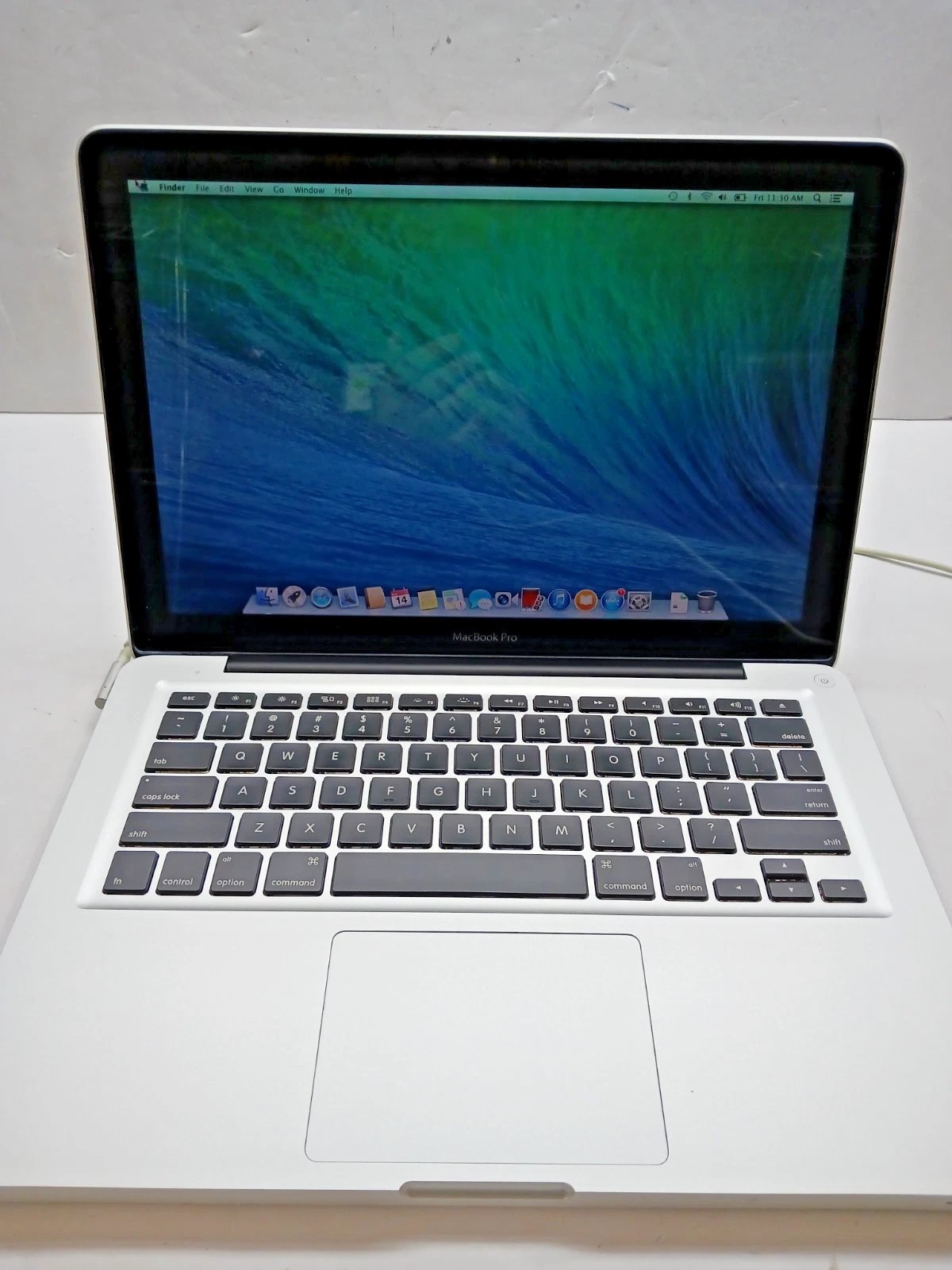
ebay store refurbished Macbook Pro The difference starts with how commercial-grade computers are built.
Business-class systems from manufacturers such as Dell, HP, and Lenovo are engineered for demanding professional environments where reliability matters. These systems are designed to operate all day, every day, in offices, government agencies, schools, healthcare facilities, and enterprise environments. They typically feature higher-quality motherboards, more robust power systems, superior cooling, and components built to withstand years of continuous use.
Consumer computers are built differently.
By comparison, many budget consumer computers are designed primarily to meet a retail price target. Though new, they often contain entry-level processors, limited memory, slower storage devices, and components intended for light-duty use.
A common example is the difference between a refurbished commercial workstation and a new budget laptop costing the same amount. The refurbished business system frequently includes a faster processor, more RAM, better upgrade options, and a stronger chassis. As a result, it can provide a smoother experience for web browsing, office applications, video conferencing, multitasking, and educational use.
Another key factor is Windows 11 compatibility.
Microsoft has established specific hardware requirements for Windows 11. Unfortunately, sellers may advertise older systems with unsupported Windows 11 installations that may not receive future updates properly. Technology professionals and industry experts have repeatedly warned consumers about computers that have been force-upgraded to Windows 11. Meeting Microsoft’s official requirements is essential for proper function. Such systems can face future security and compatibility issues.
ComputerCorps is a Microsoft authorized refurbisher (MAR). Every Windows computer we sell is evaluated and prepared for modern use. We sell refurbished systems with Windows 11. We use proper protocols when configuring them to provide a current operating environment for today’s applications and security requirements. ComputerCorps specifically promotes low-cost Windows 11 computers through its Carson City outlet store.
Did we mention longevity?
Consumers should also consider longevity. A commercial-grade desktop originally built for a business environment often remains serviceable far longer than a low-cost retail computer. The ability to upgrade memory, storage, and peripherals means many business-class systems continue performing effectively years after purchase. This translates into a lower total cost of ownership and less electronic waste.
We have a history of community involvement and service.
ComputerCorps has been helping Northern Nevada residents and organizations access affordable technology for more than 25 years. We refurbish and repair computers and related equipment. Additionally, we provide affordable servers and communications systems, and help keep significant amounts of electronic waste out of local landfills. Our organization processes roughly one million pounds of electronic material annually while extending the useful life of quality technology equipment.
The leadership behind ComputerCorps brings decades of real-world technology experience. Ron Norton and the ComputerCorps team have built a reputation throughout Northern Nevada for practical technical expertise, responsible refurbishment practices, and community-focused technology education. The ComputerCorps mission has always been to provide reliable technology access to individuals, families, schools, and nonprofit organizations.
When customers visit the ComputerCorps Outlet Store in Carson City, they are not purchasing outdated “junk” computers. They are choosing professionally refurbished commercial-grade systems selected for reliability, tested for functionality, and prepared for modern computing needs. The result is often a computer that delivers more performance, greater durability, and better long-term value than a brand-new budget system purchased elsewhere.
For consumers seeking dependable technology without overspending, certified refurbished commercial-grade computers represent one of the smartest investments available today.
Learn more about ComputerCorps donations, volunteering or check current inventory at the Carson City outlet store and at our ebay store.
- Internet Safety for Kids: Are Refurbished Computers Safe for Kids?

As a parent, you want to ensure that your child has access to the tools they need to succeed, whether it’s for school, hobbies, or staying connected with friends. Computers are an essential part of modern education and entertainment, but buying a brand-new device isn’t always the most practical or affordable option. Refurbished computers fill that void but parents still worry about internet safety on a used refurbished computer.
Internet Safety for Kids At ComputerCorps in Carson City, NV, we specialize in providing Certified Refurbished Commercial-Grade Computers that are reliable, affordable, and safe for kids. But as a parent, you may wonder: Are pre-owned computers really safe for children? The answer is yes—if you know what to look for.
This guide will walk you through everything you need to know about refurbished computers for kids, including what makes them safe, what to look for, and how ComputerCorps ensures quality and reliability.
What Are Refurbished Computers?
Refurbished computers are pre-owned devices that have been professionally restored to like-new condition. At ComputerCorps, our donated devices go through a rigorous process that includes:
- Inspection: We test every component for functionality.
- Repair or Replacement: ComputerCorps volunteers repair or replace defective parts with high-quality components.
- Cleaning: Our volunteers thoroughly clean donated devices inside and out.
- Upgrades: Many systems are upgraded with faster processors, more RAM, and solid-state drives (SSDs) for better performance.
- Certification: Each computer is certified to meet our high standards for quality and reliability.
This process ensures that computers from ComputerCorps are not only safe but also perform as well as, or better than, many new consumer-grade devices.
Ways Refurbished Computers for Kids Can Offer Internet Safety
1. Commercial-Grade Durability
Unlike consumer-grade laptops and desktops, commercial-grade computers are designed and built to withstand heavy use. Engineers design brands like Dell Latitude, HP EliteBook, and Lenovo ThinkPad for corporate environments. As a result, they’re more durable and reliable for kids who may not always handle devices with care.
At ComputerCorps, we carry a volume of business, or commercial-grade systems, ensuring your child has an opportunity to get a device that will handle daily wear and tear.
2. Certified Refurbishment Process
The key to safety lies in the refurbishment process. At ComputerCorps, every computer undergoes:
- Hardware Testing: Ensuring all components, from the motherboard to the keyboard, are fully functional.
- Software Installation: We install genuine, licensed operating systems (like Windows 10 or 11) to ensure security and compatibility.
- Data Wiping: We securely erase all previous data to protect your family’s privacy.
This level of care ensures that the computers we sell are safe, secure, and ready for use right out of the box.
3. Pre-Installed Parental Controls
Ask us about built-in parental control options. These can be installed in refurbished computers too. For example, current MS Windows operating systems include tools like Microsoft Family Safety, which allows you to:
- Set screen time limits.
- Monitor online activity.
- Block inappropriate websites.
These features make it easy for parents to create a safe digital environment for their kids.
What to Look for in a Refurbished Computer for Kids
When shopping for a refurbished computer, here are some key factors to consider:
1. Performance
Look for devices with at least:
- 8GB of RAM for smooth multitasking.
- Solid-State Drives (SSDs) for faster boot times and better performance.
- Intel Core i5 or i7 processors for handling schoolwork, video calls, and light gaming.
- Windows 11 operating system
At ComputerCorps, we upgrade many of the systems we receive to meet these performance standards.
2. Warranty
A warranty is a sign of quality and reliability. At ComputerCorps, we offer a 90-day warranty on all refurbished computers. You get peace of mind that your child’s device is protected.
3. Reputable Seller
Always buy from a trusted source. ComputerCorps has been serving the Carson City community for years, providing high-quality refurbished computers and accessories.
Benefits of Refurbished Computers for Kids
1. Affordability
Refurbished computers typically cost 40–70% less than new devices, making them an excellent choice for families on a budget.
2. Eco-Friendly
By choosing a refurbished computer, you’re helping to reduce electronic waste. That’s because at ComputerCorps, we’re committed to sustainability and to giving technology a second life.
3. Customizable
Our computers often come with upgrade options, allowing you to tailor the device to your child’s needs.
Why Choose ComputerCorps?
At ComputerCorps, we take pride in providing Certified Refurbished Commercial-Grade Computers that are safe, reliable, and affordable. Here’s what sets us apart:
- Rigorous Testing: Every device is thoroughly inspected and certified.
- Performance Upgrades: Many systems include SSDs and additional RAM.
- Warranty Protection: All computers come with a 90-day warranty.
- Community Focus: We’re a trusted part of the Carson City community, dedicated to helping families access quality technology.
Education through our fun TechCamp Program for Kids
Education is critical in helping your child stay safe on their new-to-them computer or other refurbished device. Each of our TechCamps is a two-week program designed for kids aged 9–15. It offers hands-on experience with computer recycling, testing, and assembly. Campers even get to build their own personalized computer to take home!
TechCamp also emphasizes internet safety and security, teaching kids how to navigate the digital world responsibly. With games, competitions, and expert guidance, it’s a fun and educational way to spark your child’s interest in technology. Learn more about TechCamp here.
Conclusion
Refurbished computers are not only safe for kids but also a smart investment for families. With the right seller and a focus on quality, these devices can provide the performance, durability, and security your child needs to succeed. With our staff, we can also provide the internet safety tools you need for their protection.
Visit our store in Carson City to explore our selection of Certified Refurbished Computers and find the perfect device for your family.